> ## Documentation Index
> Fetch the complete documentation index at: https://trunk-4cab4936-sam-gutentag-test-collections-docs.mintlify.site/llms.txt
> Use this file to discover all available pages before exploring further.
# Managing your Organization
## Organization Slug and Token
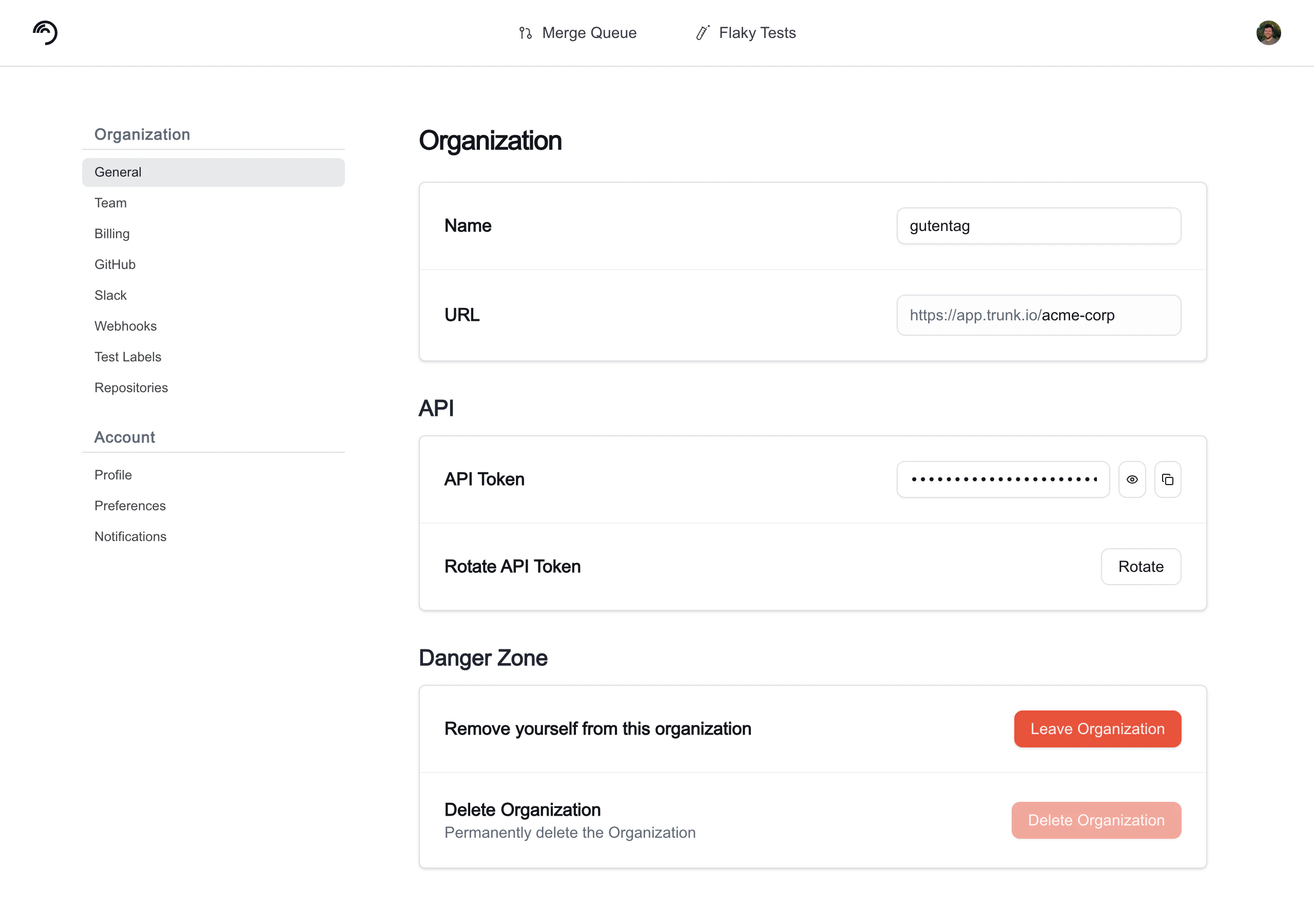
Integrating with Trunk through [Webhooks](../flaky-tests/webhooks/), [APIs](./apis/), or [CLI](/code-quality/overview/cli/getting-started) will require authentication using your organization's slug and token.
You can find your organization slug and token by going to **Settings** > **Organization** > **General**.
 ***
## Managing Team Members
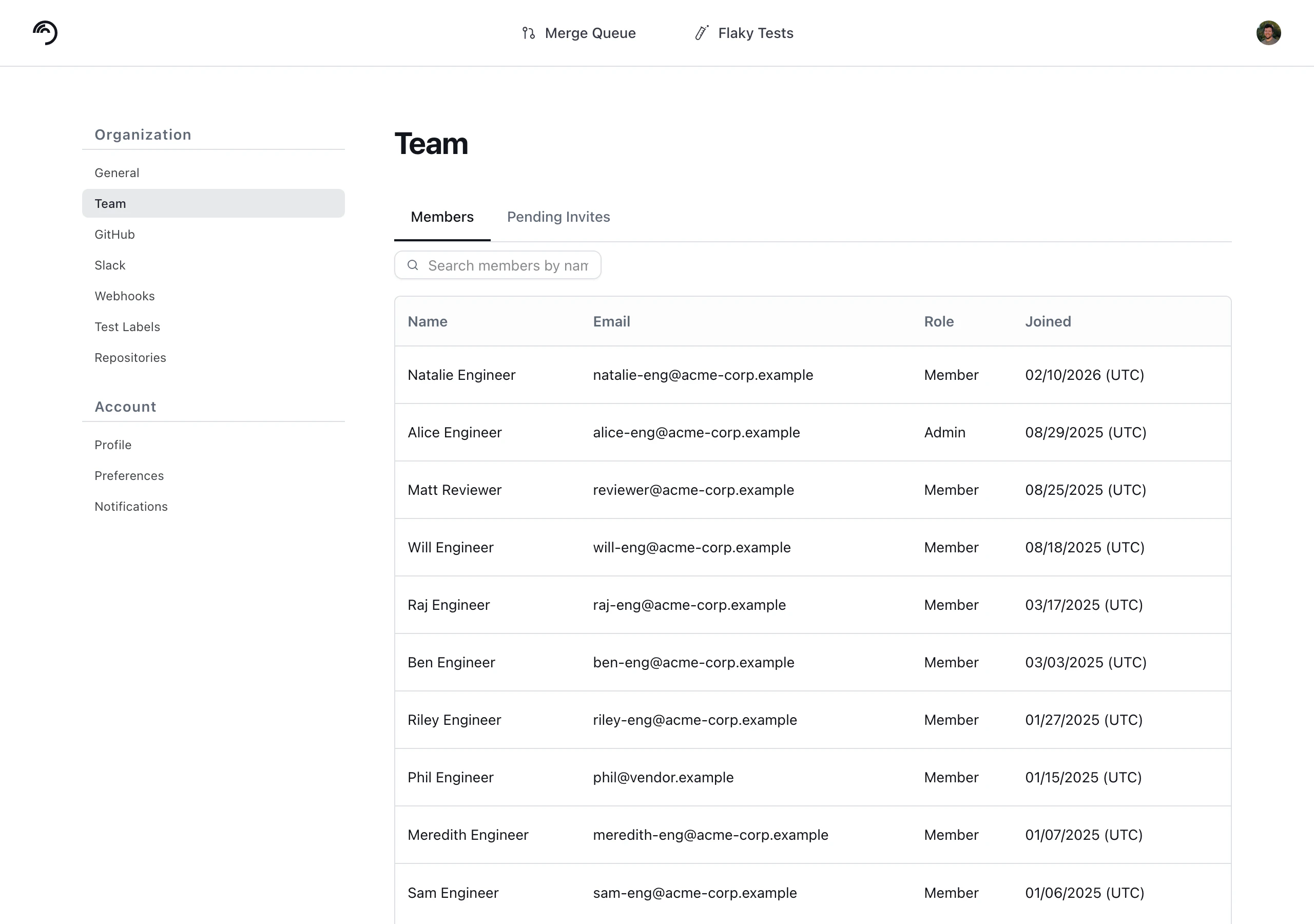
You can manage a team member's role and remove team members by navigating to **Settings** > **Organization** > **Team** > **Members** and clicking on the name of a team member. You can change the role of a team member between member and admin, as well as remove the user from your organization.
***
## Managing Team Members
You can manage a team member's role and remove team members by navigating to **Settings** > **Organization** > **Team** > **Members** and clicking on the name of a team member. You can change the role of a team member between member and admin, as well as remove the user from your organization.
 ### Inviting Team Members
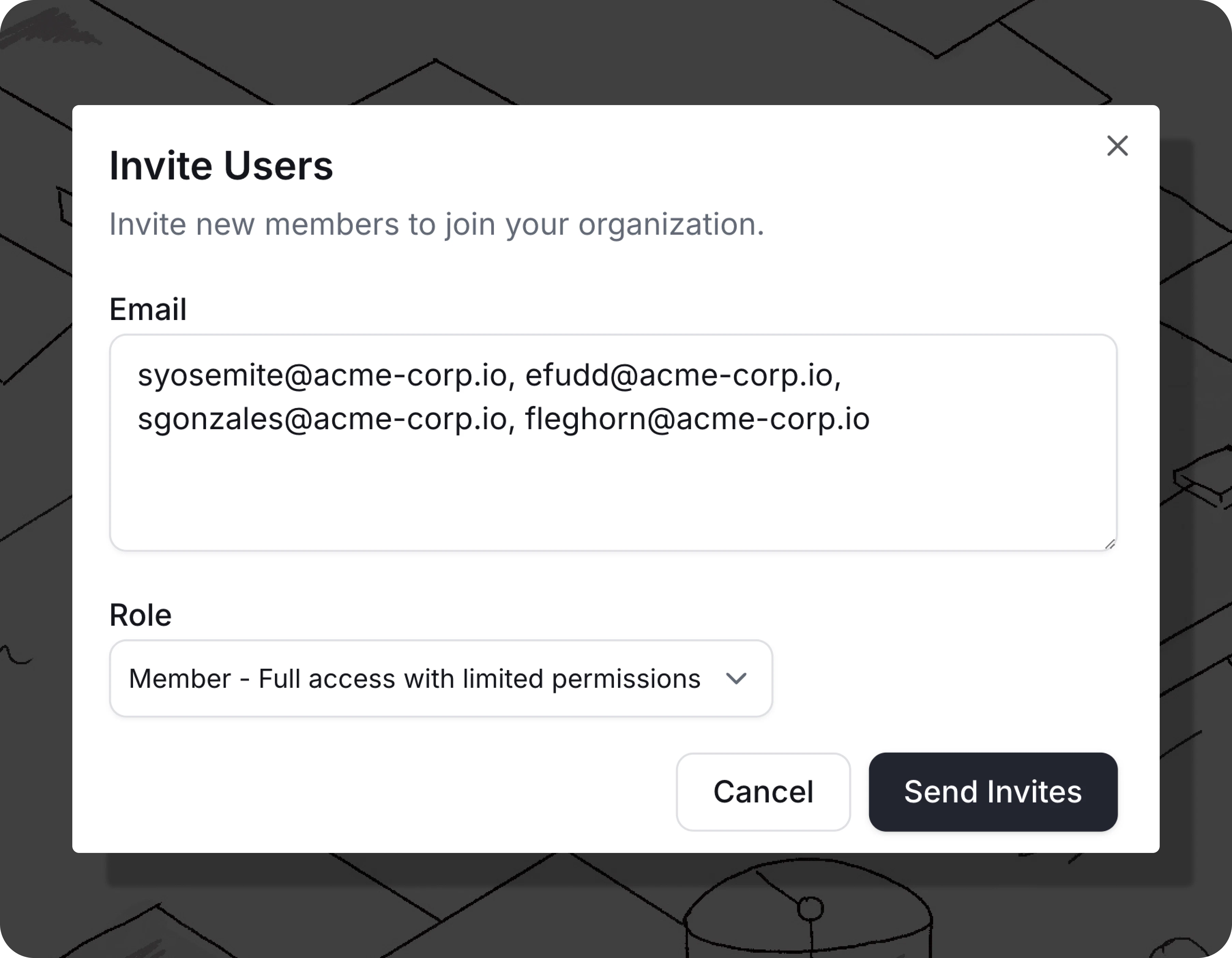
You can invite individual members manually by navigating to **Settings** > **Organization** > **Team** > **Members** and clicking the **Invite Users** button. An email will be sent to the invitee's inbox.
In the form, add comma separated email addresses and select a Role from the drop down. This role will be applied to all users in this invite batch.
Available Roles are:
* **Member**: Full access with limited permissions (default)
* **Admin**: Full administrative access
### Inviting Team Members
You can invite individual members manually by navigating to **Settings** > **Organization** > **Team** > **Members** and clicking the **Invite Users** button. An email will be sent to the invitee's inbox.
In the form, add comma separated email addresses and select a Role from the drop down. This role will be applied to all users in this invite batch.
Available Roles are:
* **Member**: Full access with limited permissions (default)
* **Admin**: Full administrative access
 ### Pending Invites
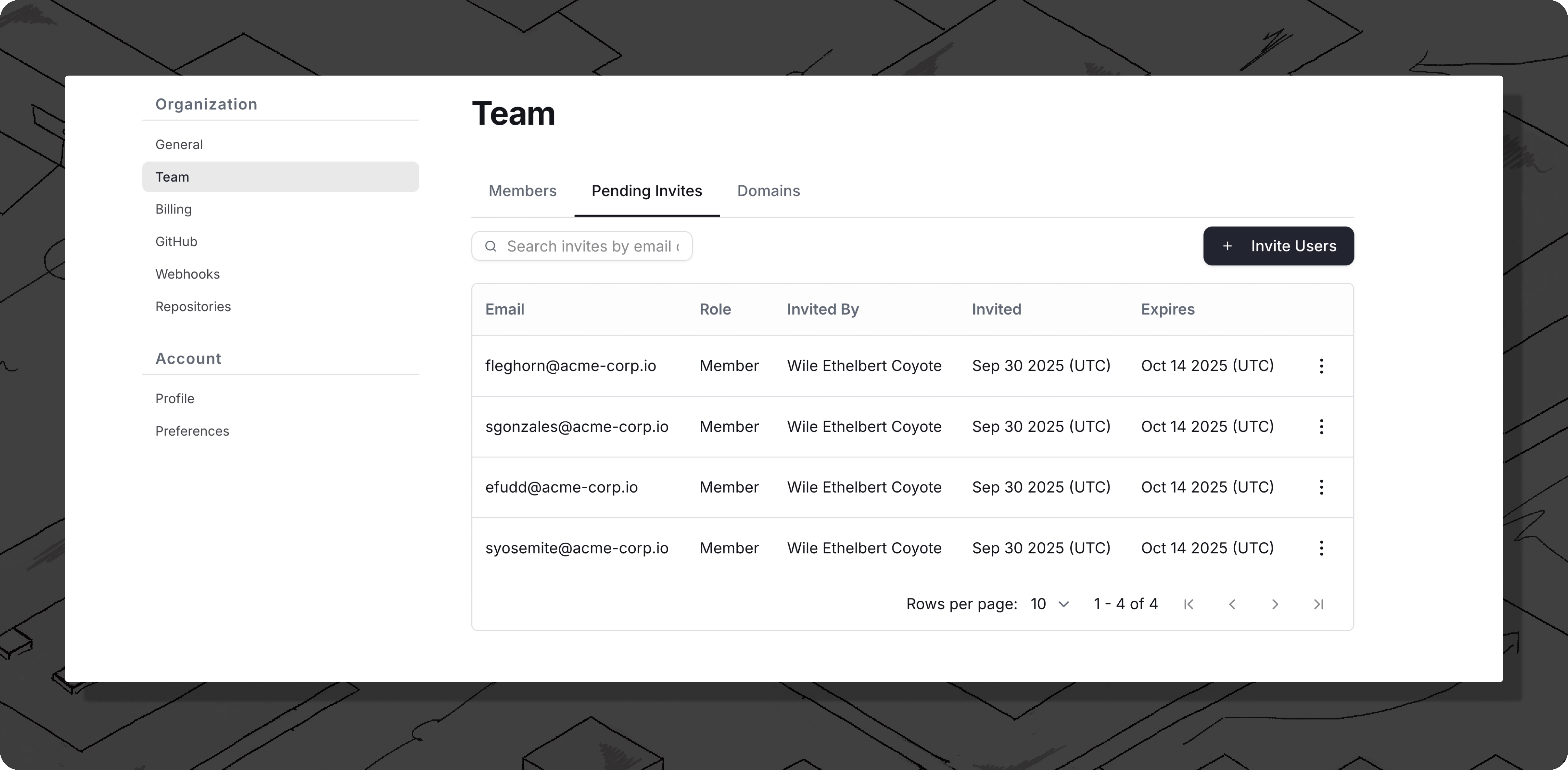
You can view and manage pending email invites by navigating to **Settings** > **Organization** > **Team** > **Pending Invites**.
From this page you can copy the member invite link or revoke the invite using the **three dots** menu.
### Pending Invites
You can view and manage pending email invites by navigating to **Settings** > **Organization** > **Team** > **Pending Invites**.
From this page you can copy the member invite link or revoke the invite using the **three dots** menu.
 Trunk also supports SSO login. If you wish to use SSO, please contact us at [support@trunk.io](mailto:support@trunk.io).
***
## Leaving an Organization
You can remove yourself from an organization at any time by navigating to **Settings** > **Organization** > **General** and clicking **Leave Organization**.
A confirmation dialog will appear. Once you leave, you lose access to the organization's settings, repositories, and test data. Another member can invite you back if needed.
**If you are an admin**, the **Leave Organization** button appears in the **Danger Zone** section at the bottom of the General settings page alongside the **Delete Organization** option.
**If you are not an admin**, the **Leave Organization** option appears as a standalone card outside the Danger Zone section.
Trunk also supports SSO login. If you wish to use SSO, please contact us at [support@trunk.io](mailto:support@trunk.io).
***
## Leaving an Organization
You can remove yourself from an organization at any time by navigating to **Settings** > **Organization** > **General** and clicking **Leave Organization**.
A confirmation dialog will appear. Once you leave, you lose access to the organization's settings, repositories, and test data. Another member can invite you back if needed.
**If you are an admin**, the **Leave Organization** button appears in the **Danger Zone** section at the bottom of the General settings page alongside the **Delete Organization** option.
**If you are not an admin**, the **Leave Organization** option appears as a standalone card outside the Danger Zone section.