> ## Documentation Index
> Fetch the complete documentation index at: https://trunk-4cab4936-sam-gutentag-test-collections-docs.mintlify.site/llms.txt
> Use this file to discover all available pages before exploring further.
# Test Labels
> Organize and categorize test cases with organization-scoped labels.
Test labels are organization-scoped tags you can apply to individual test cases to organize, filter, and categorize your test suite. Labels can be applied [manually from the test detail page](#apply-and-remove-labels-on-a-test-case) or [automatically by a monitor](#automatic-labeling-from-monitors).
 ## Manage labels
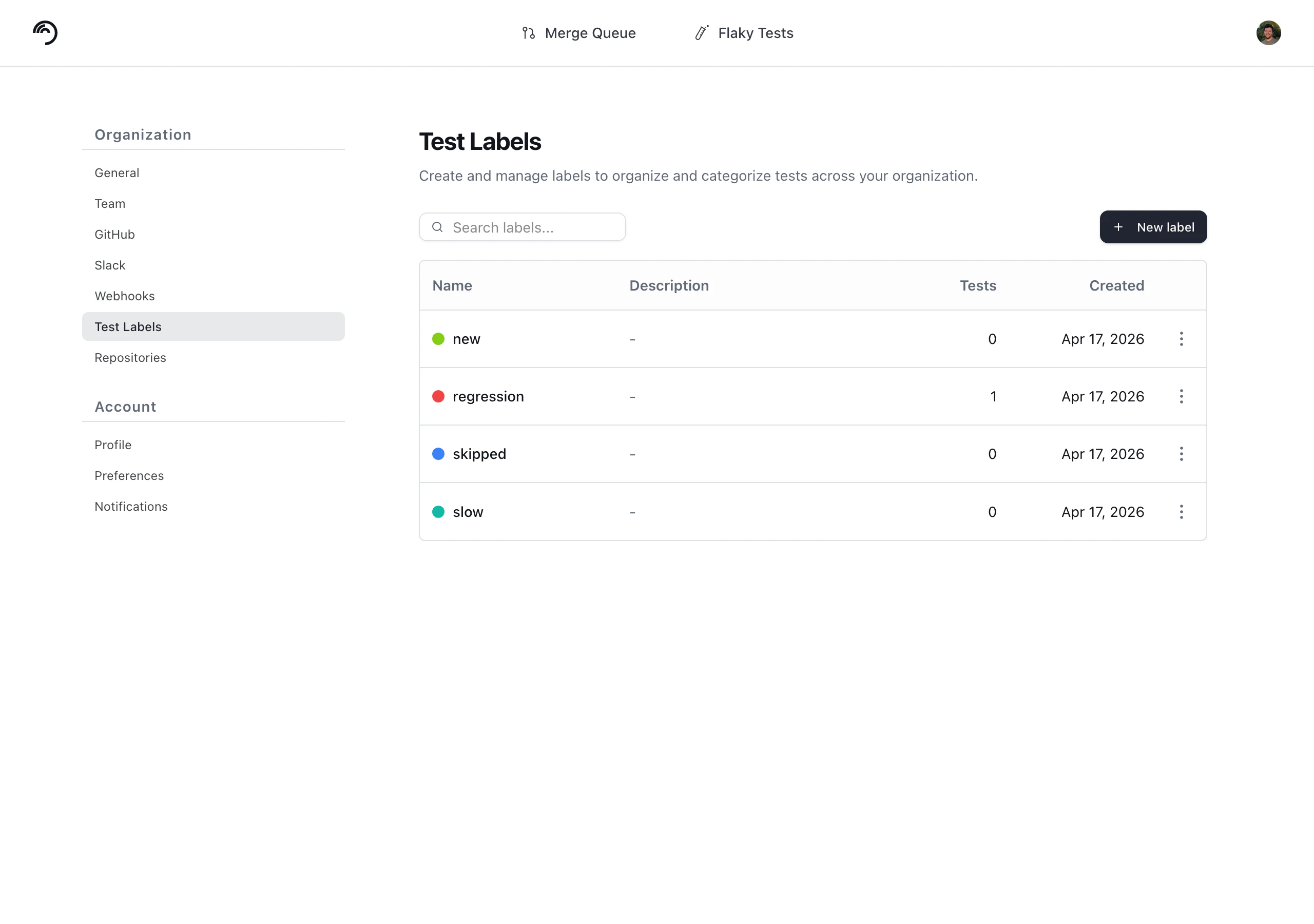
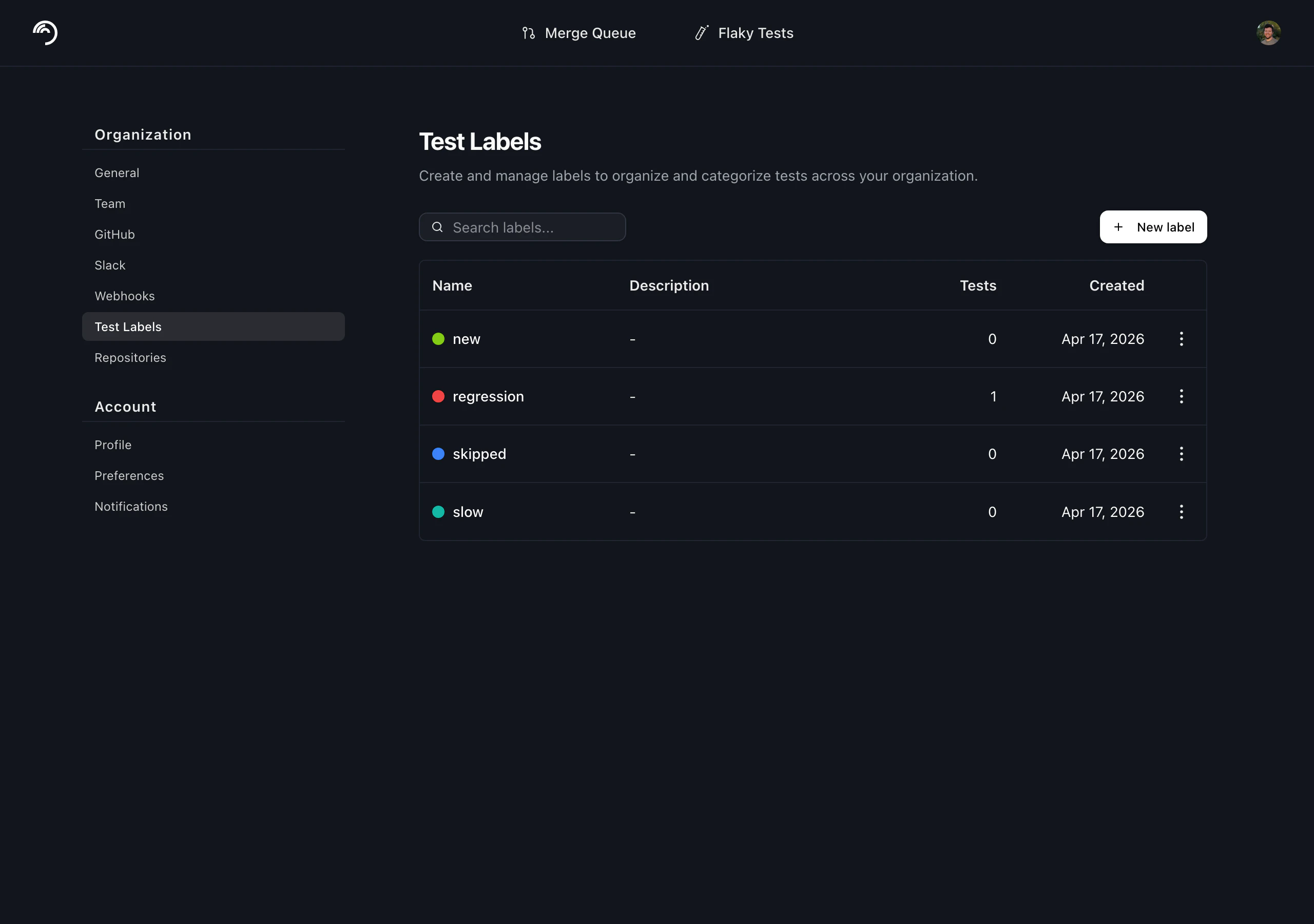
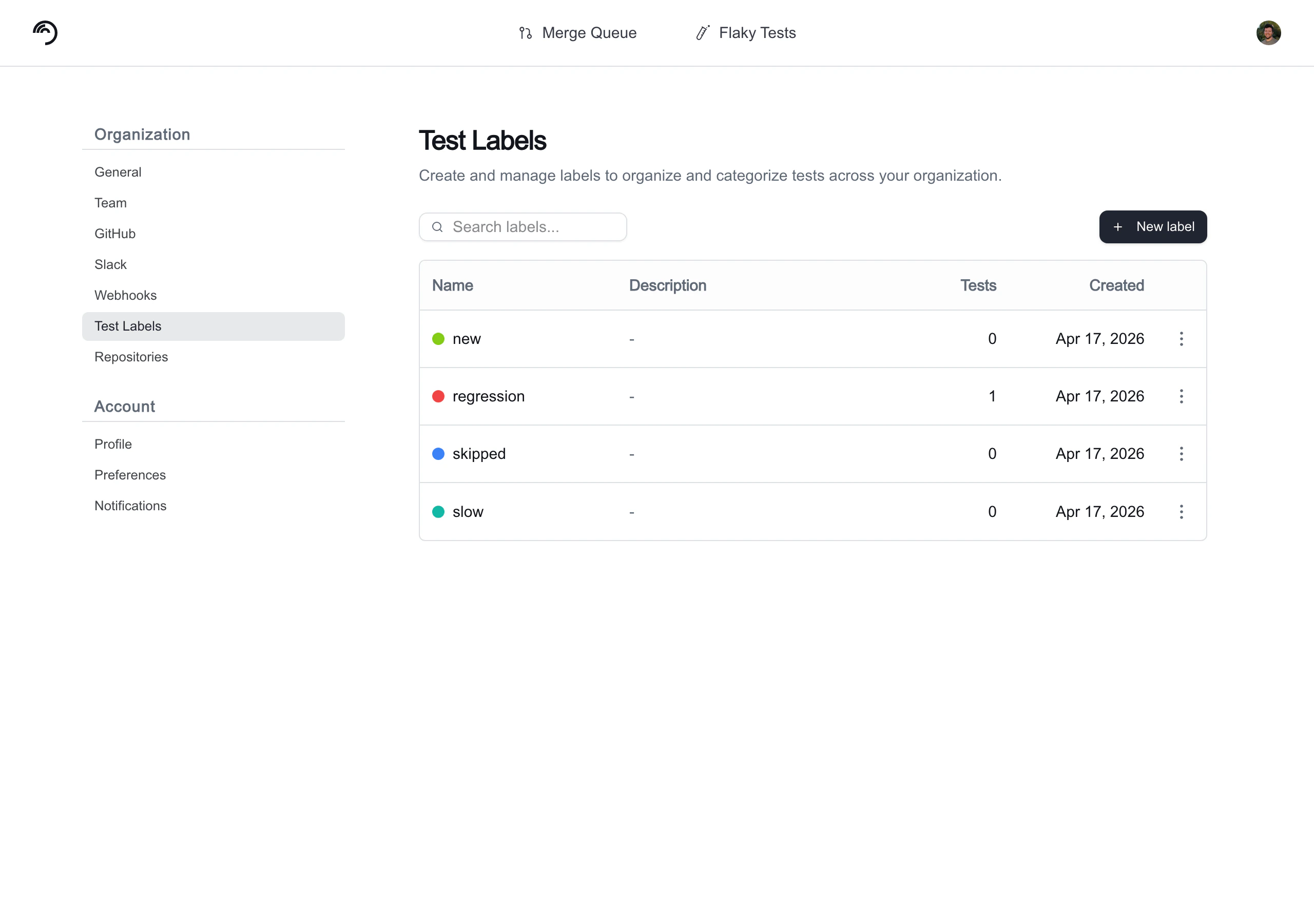
Labels are created, edited, and deleted at **Settings > Organization > Test Labels**. Each label has a name, an optional description, and a color used for its chip in the UI. The settings page also shows how many test cases each label is currently applied to.
Deleting a label removes it from every test case it's applied to; this cannot be undone. A label that is referenced by a monitor's [label action](#automatic-labeling-from-monitors) cannot be deleted — the settings page lists the monitors that still reference it so you can clear those references first.
## Manage labels
Labels are created, edited, and deleted at **Settings > Organization > Test Labels**. Each label has a name, an optional description, and a color used for its chip in the UI. The settings page also shows how many test cases each label is currently applied to.
Deleting a label removes it from every test case it's applied to; this cannot be undone. A label that is referenced by a monitor's [label action](#automatic-labeling-from-monitors) cannot be deleted — the settings page lists the monitors that still reference it so you can clear those references first.
 ## Apply and remove labels on a test case
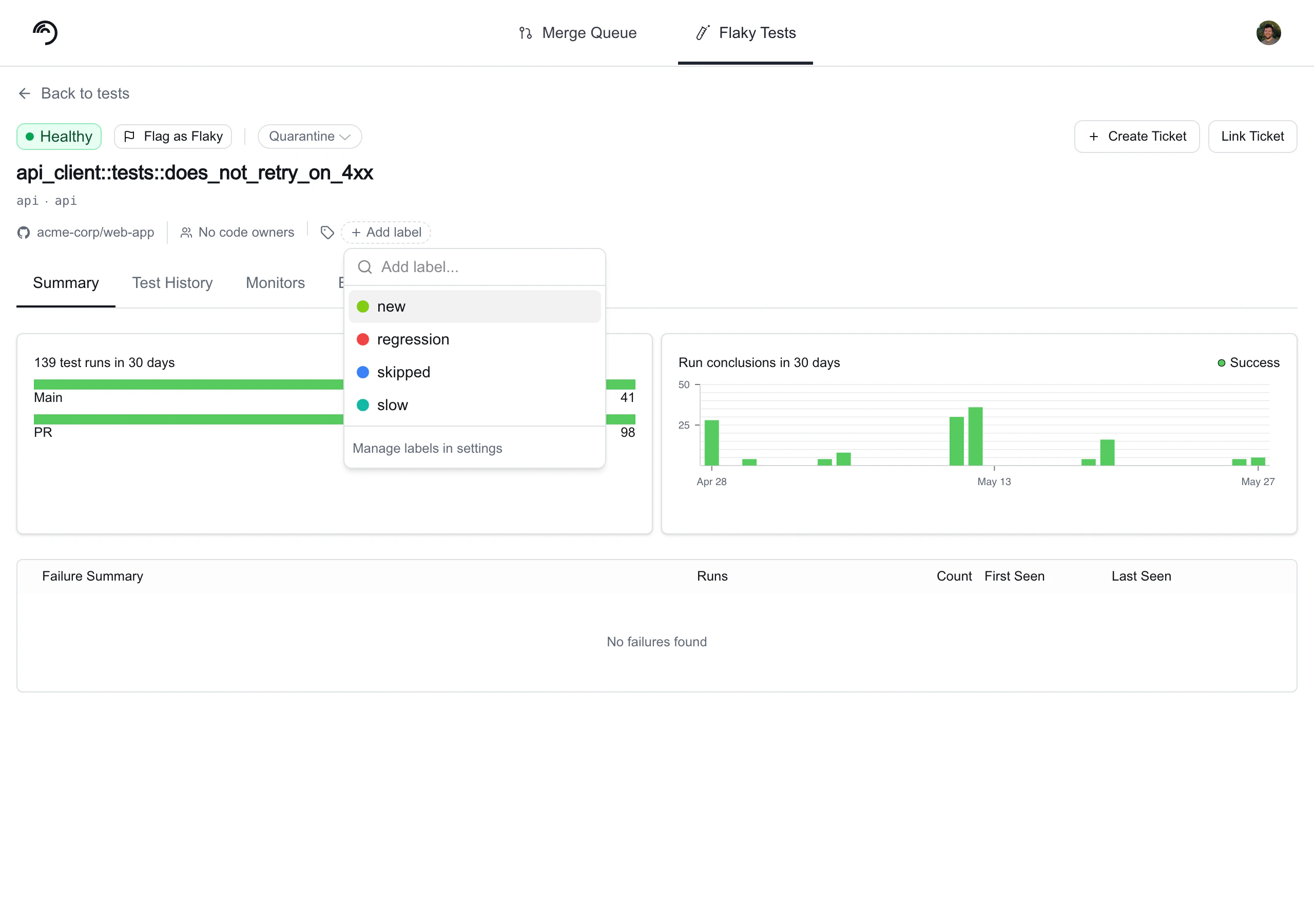
You apply and remove labels from a test case using the label picker on the test case detail page. The picker lets you search existing labels, toggle them on or off, and create a new label inline if one doesn't already exist. Each assignment records who applied the label and when.
## Apply and remove labels on a test case
You apply and remove labels from a test case using the label picker on the test case detail page. The picker lets you search existing labels, toggle them on or off, and create a new label inline if one doesn't already exist. Each assignment records who applied the label and when.
 ## Filter tests by label
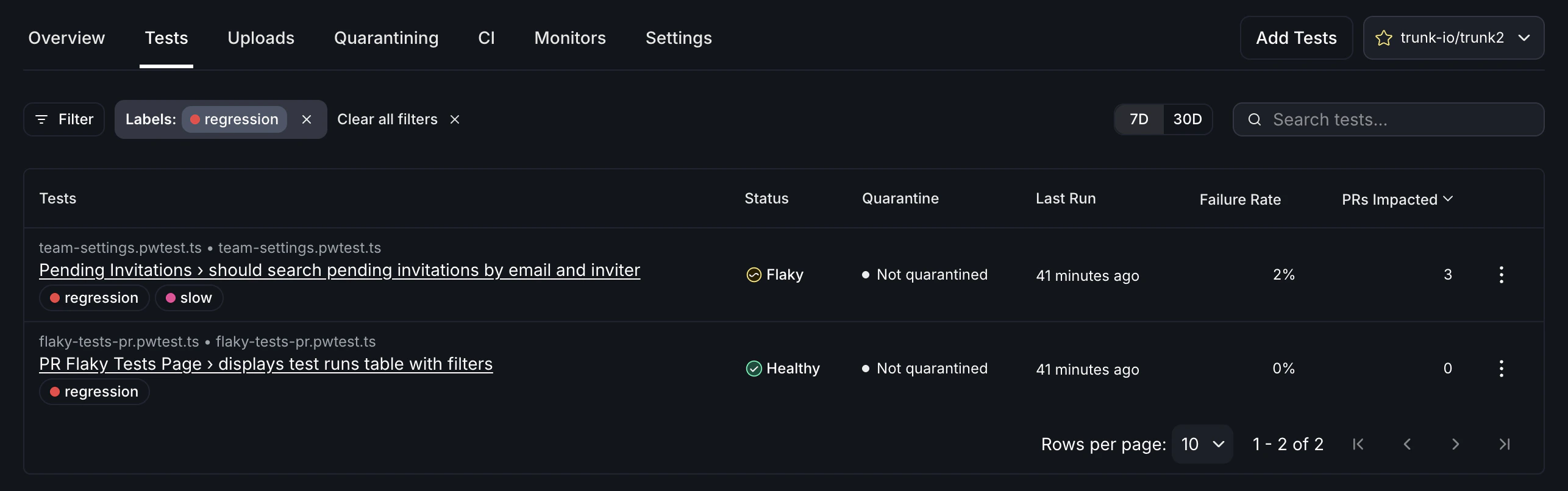
On the tests list, you can filter the table down to test cases that have a particular label applied. This makes labels useful for slicing the view by the categories your team cares about.
## Filter tests by label
On the tests list, you can filter the table down to test cases that have a particular label applied. This makes labels useful for slicing the view by the categories your team cares about.
 ## Automatic labeling from monitors
The [pass-on-retry](../detection/pass-on-retry-monitor), [failure rate](../detection/failure-rate-monitor), and [failure count](../detection/failure-count-monitor) monitors can be configured to apply one or more labels to a test instead of classifying it as flaky or broken. Use this when you want a monitor to surface a pattern (for example, *fails on retry on PR branches*) for triage or filtering without changing the test's health status. The same setup also works as a [dry-run](../detection/#dry-running-with-labels) while you tune a new monitor before flipping it to classify.
### Choose the monitor's action
When you create or edit one of these monitors, the **Action** section asks what happens when the monitor activates:
* **Classify test status** (the default) — marks the test as flaky or broken while the monitor is active, and restores the test to healthy when the monitor resolves. This is the original behavior.
* **Apply labels** — adds the configured labels to the test while the monitor is active. The test's health status is not changed by this monitor.
A monitor uses one action or the other, not both.
### Configure the label action
After selecting **Apply labels**, pick one or more labels from your organization's label set. You can create a new label inline if the one you need doesn't exist yet — the new label is added to the org-wide set in [Settings > Organization > Test Labels](#manage-labels).
By default, the labels are removed when the monitor resolves. Turn off **Remove these labels when the monitor resolves** to keep them on the test after the monitor stops reporting.
### How monitor-applied labels appear
Monitor-applied labels show up in the same places as manually applied labels: as chips on the [tests list](#filter-tests-by-label) and on the test detail page. Hovering a label tells you whether a user, one or more monitors, or a combination applied it, along with when it was first applied.
When the same label is applied to a test by multiple sources (for example, by a user and by a monitor, or by two different monitors), the label stays on the test until every source removes it. Removing the source (such as disabling the monitor or switching its action away from **Apply labels**) clears that source's contribution on the next evaluation.
## Related
* [Managing detected flaky tests](./managing-detected-flaky-tests) — a step-by-step process for handling detected flaky tests
* [Flake Detection](../detection/) — monitors that watch for problematic test behavior
## Automatic labeling from monitors
The [pass-on-retry](../detection/pass-on-retry-monitor), [failure rate](../detection/failure-rate-monitor), and [failure count](../detection/failure-count-monitor) monitors can be configured to apply one or more labels to a test instead of classifying it as flaky or broken. Use this when you want a monitor to surface a pattern (for example, *fails on retry on PR branches*) for triage or filtering without changing the test's health status. The same setup also works as a [dry-run](../detection/#dry-running-with-labels) while you tune a new monitor before flipping it to classify.
### Choose the monitor's action
When you create or edit one of these monitors, the **Action** section asks what happens when the monitor activates:
* **Classify test status** (the default) — marks the test as flaky or broken while the monitor is active, and restores the test to healthy when the monitor resolves. This is the original behavior.
* **Apply labels** — adds the configured labels to the test while the monitor is active. The test's health status is not changed by this monitor.
A monitor uses one action or the other, not both.
### Configure the label action
After selecting **Apply labels**, pick one or more labels from your organization's label set. You can create a new label inline if the one you need doesn't exist yet — the new label is added to the org-wide set in [Settings > Organization > Test Labels](#manage-labels).
By default, the labels are removed when the monitor resolves. Turn off **Remove these labels when the monitor resolves** to keep them on the test after the monitor stops reporting.
### How monitor-applied labels appear
Monitor-applied labels show up in the same places as manually applied labels: as chips on the [tests list](#filter-tests-by-label) and on the test detail page. Hovering a label tells you whether a user, one or more monitors, or a combination applied it, along with when it was first applied.
When the same label is applied to a test by multiple sources (for example, by a user and by a monitor, or by two different monitors), the label stays on the test until every source removes it. Removing the source (such as disabling the monitor or switching its action away from **Apply labels**) clears that source's contribution on the next evaluation.
## Related
* [Managing detected flaky tests](./managing-detected-flaky-tests) — a step-by-step process for handling detected flaky tests
* [Flake Detection](../detection/) — monitors that watch for problematic test behavior